Article
Mar 11, 2026
What Are Claude Skills and How to Use Them
Learn what Claude Skills are, how they work, and how to build your own to automate repeated business workflows.
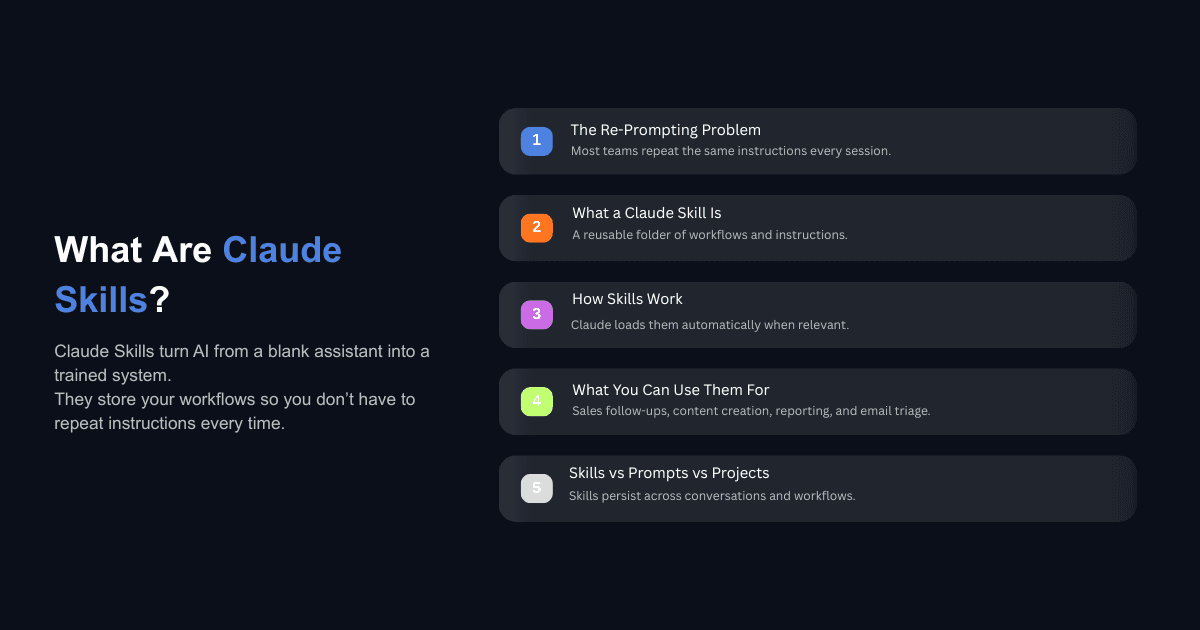
Most teams using AI today are stuck in a loop. Every time they open Claude, they paste the same brand guidelines, explain the same formatting preferences, and re-describe the same processes. It works, but it doesn't scale. And it definitely doesn't feel like the AI is learning anything about how you operate.
That's the problem Claude Skills were built to solve. Skills let you package your workflows, preferences, and domain knowledge into a reusable format that Claude loads automatically when the task calls for it. You teach it once, and it remembers every time.
This guide walks through what Claude Skills are, how they work, how to build your own, and where they create the most value for business teams. If your company is serious about implementing AI into real workflows, this is one of the most practical features available right now.
What Are Claude Skills?
The Simple Explanation
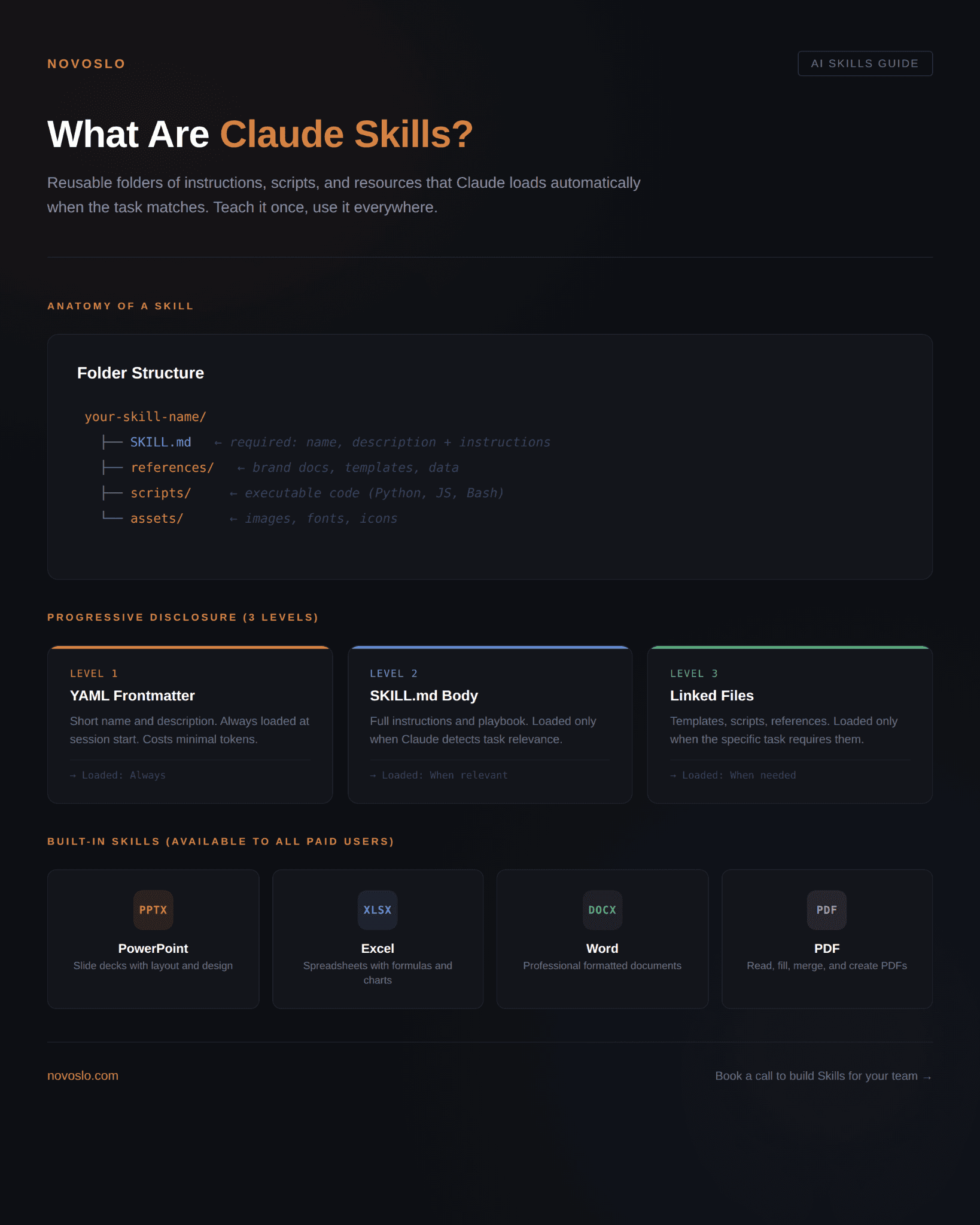
A Claude Skill is a folder containing instructions, scripts, and reference files that Claude can access when it's relevant to the task you're working on. Think of it as an onboarding document for a new hire. Instead of verbally explaining your processes every morning, you write them down once and hand them over.
The difference between Skills and just giving Claude a long prompt is structure and persistence. A prompt disappears after the conversation ends. A Skill stays available across every future conversation, and Claude is smart enough to know when to pull it in without being told.
This is a meaningful shift for teams that have been treating AI as a general assistant. Skills turn Claude into a specialist that already knows your brand voice, your sales process, your reporting format, or whatever else you've encoded into the Skill.
How Skills Actually Work Under the Hood
Every Skill lives in a folder that contains at minimum one file called SKILL.md. This file has two parts: YAML frontmatter at the top (a short name and description) and Markdown instructions below (the actual playbook Claude follows).
The system uses what Anthropic calls progressive disclosure. At the start of a session, Claude only reads the short name and description of each installed Skill. If it determines a Skill is relevant, it loads the full SKILL.md instructions. If the Skill references additional files like templates or scripts, Claude pulls those in only when needed.
This keeps things efficient. You can have dozens of Skills installed without slowing Claude down, because it only fully reads the ones it needs in the moment.
Here's what a basic SKILL.md file looks like:
That's it. A folder, a Markdown file, some clear instructions. Claude handles the rest.
What Do Claude Skills Come With Out of the Box?
Built-in Document Skills
Claude ships with several pre-built Skills for common business tasks. These are the same Skills that power Claude's ability to create professional documents, and they're available to all paid users:
PowerPoint (PPTX): Claude can design and build slide decks from scratch. You provide the content and structure, and the Skill handles layout, formatting, and design choices.
Excel (XLSX): Full spreadsheet creation with formulas, charts, and data formatting.
Word (DOCX): Professional documents with proper headings, tables of contents, and page formatting.
PDF: Reading, extracting, filling forms, merging, and creating PDFs.
These document Skills are available on claude.ai, through the Claude API, and in Claude Code. Anthropic has also open-sourced many of their example Skills on GitHub, so you can study how they're built and use them as templates for your own.
Partner and Third-Party Skills
Beyond the built-in options, Anthropic has partnered with tools like Canva, Notion, Figma, and Atlassian to offer pre-built Skills that integrate with those platforms. Skills aren't limited to document creation. They can connect to external tools through MCP (Model Context Protocol) servers, which means Claude can interact with your Gmail, Slack, CRM, and more through Skills that define how those interactions should work.
How to Create Your Own Claude Skill (Step by Step)
Using the Skill Creator Inside Claude
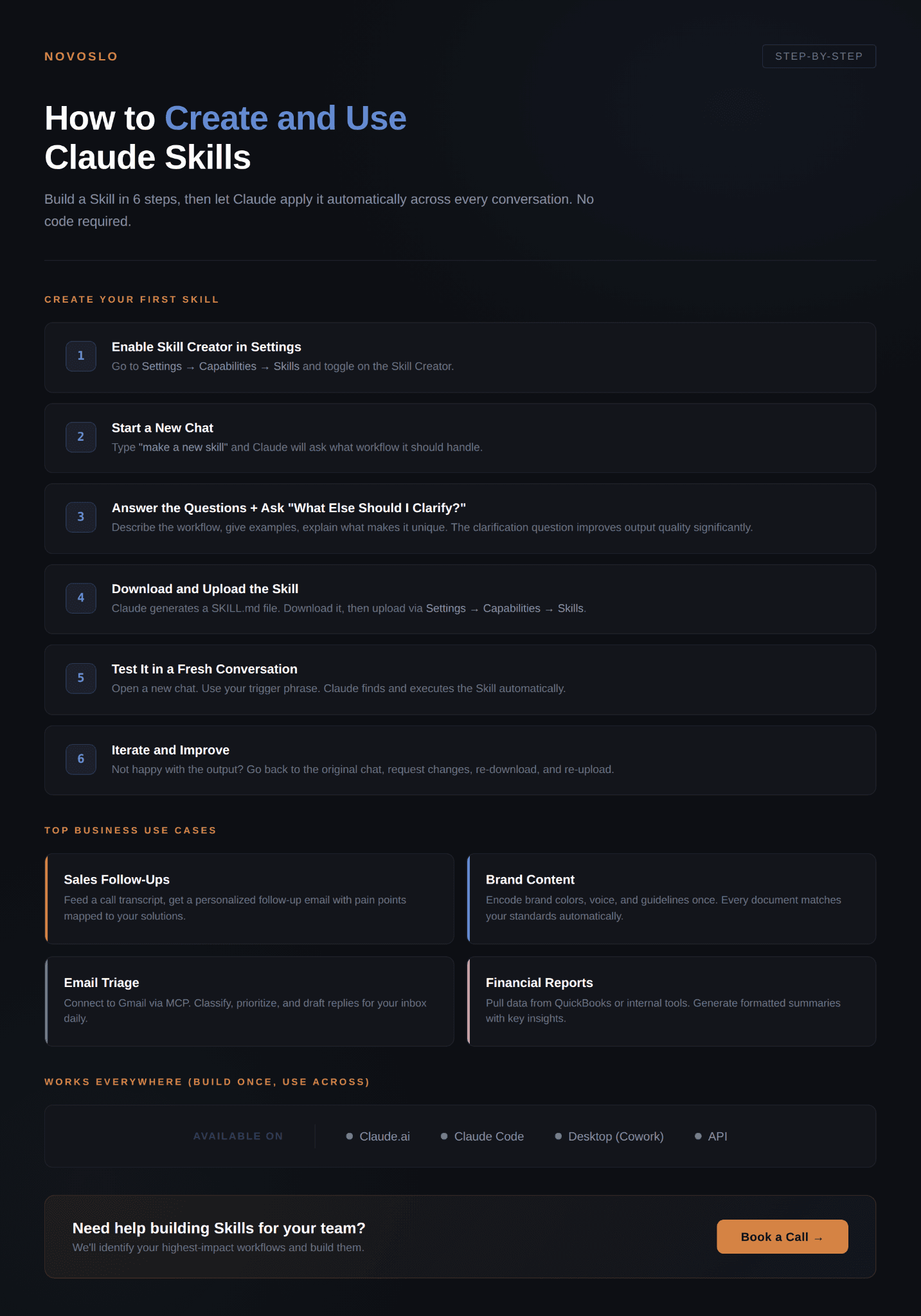
The fastest way to build a Skill is to use Claude's built-in Skill Creator. Here's the process:
Make sure you have a paid Claude account (Pro, Max, Team, or Enterprise).
Go to Settings > Capabilities and confirm the Skill Creator is turned on.
Open a new chat and type "make a new skill."
Claude will ask you a series of questions: what workflow the Skill should handle, concrete examples of when it should trigger, and what makes the Skill unique.
Answer the questions, and when you're done, ask Claude "what else should I clarify?" This step significantly improves the quality of the output.
Claude generates the SKILL.md file. Download it, go back to Settings > Capabilities > Skills, and upload it.
That's the whole process. You can test the Skill immediately by opening a new chat and using the trigger words you defined.
What Goes Into a Good SKILL.md File
A well built Skill has a few key qualities:
A specific, trigger-friendly description. Claude uses the description field to decide when to activate your Skill. Generic descriptions like "helps with projects" will rarely trigger. Be specific about what the Skill does and when it should activate. For example: "Draft post-call sales follow-up emails. Use when the user mentions discovery calls, sales follow-ups, or call transcripts."
Clear, structured instructions. Write the body of SKILL.md like you're onboarding a sharp new team member. Use numbered steps for processes. Include examples of good and bad outputs. Put the most important instructions at the top.
Reference files for context that doesn't change often. If your Skill needs access to brand guidelines, pricing data, or templates, put those in a references/ folder inside the Skill directory. Reference them from SKILL.md so Claude knows they exist, but it won't load them unless the task requires it.
Optional scripts for precision work. Skills can include executable code (Python, JavaScript, Bash) for tasks where deterministic output matters more than language generation. Document formatting, data processing, and file manipulation are good examples.
The folder structure looks like this:
Uploading and Testing Your Skill
Once your SKILL.md file is ready:
Create a ZIP file of the entire Skill folder.
In Claude, go to Settings > Capabilities > Skills.
Click "Upload Skill" and drag in your ZIP file.
Open a new chat and use your trigger phrase to test it.
If Claude doesn't find the Skill on the first try, use the Skill name directly in your prompt. Explicit mentions improve reliability while the feature is still evolving. If the output doesn't match your expectations, go back to the original conversation, ask Claude for modifications, download the updated file, and re-upload.
What Can You Actually Use Claude Skills For?
Can Claude Skills Connect to Other Apps Like Gmail or Slack?
Yes. Skills can call MCP servers, which means Claude can interact with external applications. If you connect Claude to your Gmail account (through the Search and Tools menu), you can build a Skill that summarizes your unread emails every morning and drafts responses for the ones that need attention.
The same principle applies to Slack, CRM tools, accounting software, and any other application that has an MCP server available. The Skill defines the workflow (what to look for, how to prioritize, what format to use), and the MCP connection provides the data access.
This is where Skills start to feel less like a prompt feature and more like actual AI agents working on your behalf. The Skill is the brain (it knows what to do), and the MCP connection is the hands (it can actually do it).
Can Skills Work Across Claude Code, Desktop, and API?
Skills are portable across every Claude surface. A Skill you build for claude.ai will work in Claude Code, Claude Desktop (Cowork), and through the API. The SKILL.md format is the same everywhere.
Anthropic also released Agent Skills as an open standard, which means Skills you create for Claude can technically work with other AI tools that adopt the same format. Build once, use everywhere.
For teams using Claude Cowork for business tasks, Skills load automatically. Cowork scans whatever task you're working on and pulls in relevant Skills without you having to mention them.
Real Business Use Cases for Claude Skills
Sales Follow-Ups After Discovery Calls
One of the most common business applications is automating post-call workflows. You create a Skill that accepts a call transcript and company information, then extracts pain points mentioned during the call, maps those pain points to your product's solutions, drafts a personalized follow-up email, and suggests talking points for the next conversation.
Instead of spending 30 minutes after every call writing a follow-up, you paste the transcript and let the Skill handle the heavy lifting. The output is consistent because the Skill encodes your sales methodology, your tone, and your product positioning.
Brand-Consistent Content Creation
If you've ever asked Claude to create a presentation and then spent 20 minutes fixing the fonts, colors, and tone, this is for you. A brand guidelines Skill can include your color palette, typography rules, voice guidelines, and logo usage instructions. Every time Claude creates a document or presentation, it references these guidelines automatically.
We've seen this work well for teams that produce a lot of external-facing materials. The Skill doesn't just remember your colors. It understands when to use your formal tone versus your conversational tone, when to include disclaimers, and how to structure content for your audience.
If you're curious about a concrete example, we wrote a separate guide on how to build a Claude Skill for LinkedIn posts that walks through the entire process.
Email Triage and Prioritization
A Skill connected to Gmail can scan incoming messages, classify them by urgency and topic, surface the ones that need a response, and draft replies for routine messages. The Skill defines what counts as urgent for your role, which senders get priority, and what your standard responses look like for common request types.
Financial Reporting and Summaries
Skills connected to tools like QuickBooks or internal databases can pull financial data and generate formatted summaries. Instead of manually compiling numbers into a report every week, the Skill defines what data to pull, how to structure it, and what insights to highlight.
Do Claude Skills Replace Prompts or Projects?
No, and understanding the distinction helps you use each one correctly.
Prompts are one-time instructions you give Claude in a conversation. They're good for ad hoc tasks but don't persist.
Projects are workspaces where you can upload reference documents and set custom instructions that apply to every conversation within that project. They're good for ongoing work that shares context.
Skills are portable capabilities that activate automatically across any conversation, project, or Claude surface when the task matches. They're good for workflows you repeat in different contexts.
The three work together. You might have a Project for "Q2 Marketing Campaign" that includes your campaign brief as a reference document, and when you ask Claude to create a presentation inside that Project, it automatically activates your Brand Guidelines Skill and your PPTX Skill simultaneously. Skills are composable, meaning Claude can stack multiple Skills together on a single task.
How to Get Started With Claude Skills Today
What You Need
Claude Skills are available on Pro, Max, Team, and Enterprise plans. You'll need a paid account to access them. If you're on a Team or Enterprise plan, your admin can manage Skills centrally and deploy them across the organization.
Where to Find and Enable Skills in Settings
Click your profile icon in Claude.
Go to Settings > Capabilities.
Scroll to the Skills section.
Toggle on the built-in Skills you want (Skill Creator, document Skills, etc.).
Upload any custom Skills you've built.
From there, Skills activate automatically when Claude recognizes a relevant task. You don't need to be in a specific Project or use a special command. Just describe what you need, and if a Skill matches, Claude will use it.
What This Means for Your Team
Claude Skills represent a shift in how businesses can work with AI. Instead of treating Claude as a blank slate every time, you can build institutional knowledge into it. Your processes, your standards, your preferences, all encoded once and applied consistently.
The teams getting the most out of this aren't the ones with the fanciest prompts. They're the ones who identified their most repeated workflows, packaged them as Skills, and now spend their time on work that actually requires human judgment.
If you want help identifying which workflows in your business are best suited for AI automation, or if you want to build Skills that match your team's exact processes, book a call with us and we'll walk through it together. You can also calculate your potential AI ROI before the conversation to see where the biggest opportunities are.