Article
Mar 25, 2026
Using Claude to Automate Email Responses
Learn how to set up Claude to draft email responses using Zapier, the API, and Cowork with step by step setup instructions for operations teams.
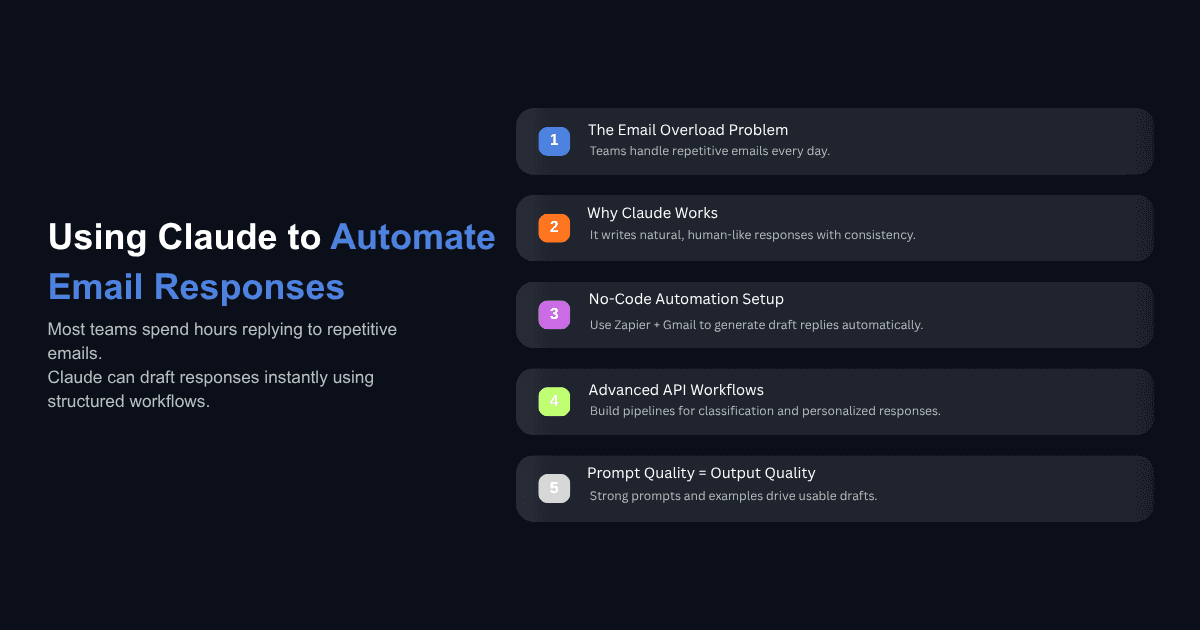
Most operations teams have at least one person whose day revolves around email. Customer questions, vendor follow ups, internal approvals, scheduling confirmations. The emails are different in detail but identical in structure. The same categories repeat week after week, and the responses follow patterns that someone already figured out months ago.
That is exactly the kind of work Claude handles well. Not because it replaces judgment, but because it can draft responses that follow the patterns your team already uses, and it does it in seconds instead of minutes. The question is not whether AI can write emails. The question is how to set it up so the output is actually usable without heavy editing.
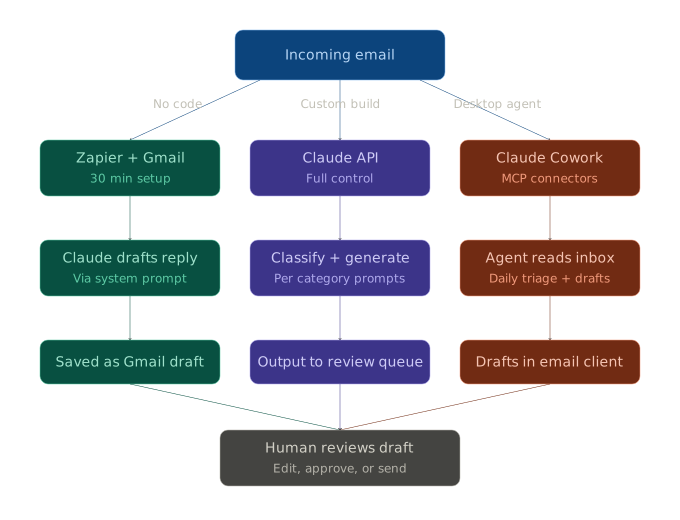
This post walks through three concrete methods for using Claude to automate email responses, from a no code setup you can finish in an afternoon to a full API pipeline for teams that need more control. If you are taking a workflow first approach to AI implementation, email is one of the clearest starting points because the inputs are structured, the outputs are measurable, and the cost of a mistake is low when you start with drafts.
Why Claude Works Well for Email Automation
Claude's architecture leans toward natural, conversational writing. Where other models tend to produce output that sounds overly formal or loaded with filler phrases, Claude generates text that reads closer to how a real person would write an email. This matters more than it sounds. If every automated reply needs 10 minutes of editing to remove robotic language, the automation is not saving anyone time.
The other reason Claude fits this use case is its ability to follow detailed instructions inside a system prompt. You can define tone, length, formatting rules, and specific phrases to avoid, and the model will hold those constraints consistently across hundreds of outputs. That consistency is what makes the difference between a novelty and something your team can rely on.
For a closer look at how Claude compares for email copy, we ran direct comparisons across SaaS outreach use cases earlier this year. The short version is that Claude produces copy that sounds human with less prompt engineering required.
How to Set Up Claude Email Automation Using Zapier and Gmail
This is the fastest path. No code, no API calls, no servers. You connect Gmail to Claude through Zapier and let it generate draft replies for every new email that hits a specific inbox. The entire setup takes about 30 minutes.
Getting Your Claude API Key
Go to the Anthropic Console, navigate to the API Keys section in the sidebar, and create a new key. Give it a name you will recognize later and copy it immediately because it will not be shown again. You will paste this key into Zapier during setup.
Configuring the Zap
The workflow has three steps. The trigger is a new email arriving in Gmail. The action is sending that email's content to Claude via the Anthropic integration. The final step saves Claude's response as a draft reply in the same Gmail thread.
Start by selecting Gmail as your trigger app with "New Email" as the trigger event. Choose the inbox you want to monitor. Then add Anthropic (Claude) as the action app and select "Send Message" as the event. Connect your API key when prompted.
In the Claude action step, map the email body from your Gmail trigger into the message field. This is where Claude receives the email content it needs to respond to.
For the final step, add Gmail again, this time with "Create Draft Reply" as the action. Map the thread ID from the trigger step so the draft attaches to the correct conversation, and map Claude's output as the draft body.
Writing the System Prompt
The system prompt is the single most important part of this setup. It defines how Claude writes, what it avoids, and what structure it follows. A weak prompt produces generic replies. A specific prompt produces drafts your team barely needs to touch.
Include these elements in your system prompt:
A role definition that tells Claude who it is writing as (for example, "You are a customer support specialist at a B2B software company"). A set of tone rules covering formality, length, and personality. Explicit instructions about what not to include, such as phrases like "I hope this email finds you well" or unnecessary apologies. Two or three example responses that show exactly what good output looks like for your most common email categories.
Start with your Zap in draft mode for the first week. Review every draft Claude generates before adjusting your prompt. Most teams find they need two or three rounds of prompt refinement before the output quality stabilizes.
How to Build a Custom Email Automation Pipeline with the Claude API
If you need more control over routing, classification, or output formatting, you will want to build a pipeline using the Claude API directly. This approach is better suited for teams handling high volumes across multiple email categories where a single Zapier workflow would not cover the variation.
Architecture Overview
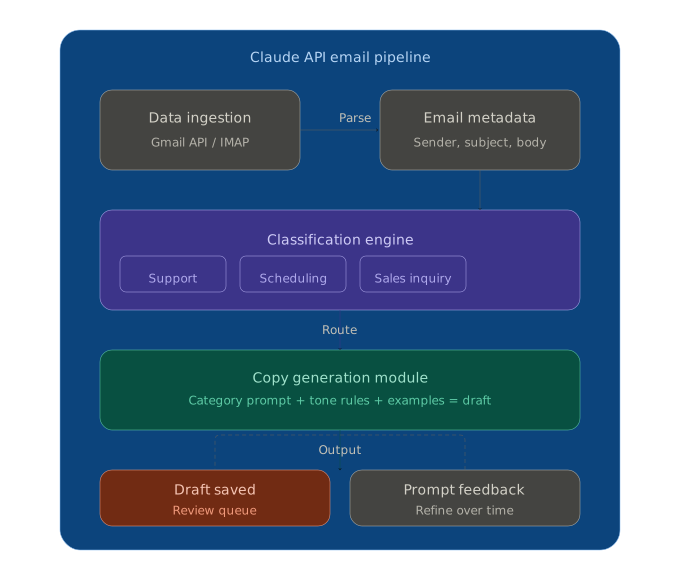
A practical pipeline has four components: a data ingestion layer that pulls emails via IMAP or the Gmail API, a classification step that sorts each email into a category (support request, scheduling, vendor inquiry, internal approval), a generation module that sends the classified email to Claude with a category specific prompt, and an output layer that saves the draft back to your email client or passes it to a review queue.
The classification step matters because it lets you use different system prompts for different email types. A customer complaint needs a different tone than a partnership inquiry, and trying to handle both with one prompt forces compromises that weaken both.
Writing Category Specific Prompts
Each email category should have its own system prompt. The prompt should include the role Claude is playing, the constraints for that category, and at least two example exchanges showing the input email and the ideal response.
For behavioral personalization, go beyond just inserting the recipient's name. If your system tracks how a customer interacts with your product (which features they use, when they last logged in, whether they have open support tickets), pass that context into the prompt. This gives Claude something real to personalize around, and the output feels like it came from someone who actually knows the customer's situation.
A well structured prompt with a 200 word output typically runs around 500 to 800 tokens per call. For a team generating 1,000 email drafts per month, API costs will likely stay under $10, depending on the model you use. Claude Sonnet offers the best balance of quality and cost for email generation.
Draft Mode vs. Direct Send
Start with drafts. The review process catches edge cases and gives you data to improve your prompts. After a few weeks of reviewing and refining, most teams find that 70 to 80 percent of drafts need no changes at all. At that point, you can consider automating the send for specific low risk categories while keeping human review for anything sensitive.
How to Automate Email Responses Using Claude Cowork and MCP
Claude Cowork is Anthropic's desktop agent that can interact directly with your applications. For email automation, this means Claude can read your inbox, draft responses, and manage triage without you building any custom infrastructure.
Setting Up Gmail and Outlook Connectors
Inside the Claude desktop app, go to Settings, then Connectors. You will see options for Gmail, Google Calendar, and Microsoft 365 among others. The Microsoft 365 connector gives Claude access to Outlook emails, SharePoint documents, and OneDrive files. Once connected, Claude can read incoming messages, pull context from related files or previous threads, and draft responses within the same environment.
This approach works well for teams already using Claude Cowork for business workflows, because email handling becomes one part of a broader automation setup rather than a standalone tool.
Using Dispatch for Mobile Email Management
Dispatch lets you assign tasks from your phone and have them executed on your computer. You can send Claude a message saying "check my inbox for anything urgent from this morning and draft replies," then come back to your computer and find the drafts waiting. This works well for managers and founders who need to stay responsive but do not want to spend their mornings composing routine replies on a phone screen.
Recurring Email Scans and Daily Triage
You can set Claude to scan your email at regular intervals. Tell it once to check your inbox every morning, flag messages that need your personal attention, and draft responses for everything else. The agent remembers the instruction and runs it on schedule.
For teams using MCP (Model Context Protocol) servers, you can extend this by connecting Claude Code to Gmail or Outlook through dedicated MCP integrations. These give the agent structured API access to your mailbox, which is faster and more reliable than browser based automation.
What Makes a Good System Prompt for Email Generation?
The quality of your automated email responses depends almost entirely on the quality of your system prompt. This is where most teams either get it right or waste weeks wondering why the output sounds generic.
Defining Role, Tone, and Constraints
A good prompt has six components: a role definition telling Claude who it is writing as, tone rules covering sentence length and formality, explicit constraints like maximum word count and phrases to avoid, context about the company and its products, a defined response structure (greeting, body, sign off), and negative instructions about what Claude should never do such as making promises about timelines or offering discounts.
Including Example Responses
Examples are the single most effective way to improve output quality. Instead of describing the tone you want, show it. Include two or three pairs of input emails and ideal responses. Claude will match the style, structure, and voice of your examples more accurately than it will follow abstract tone descriptions.
For teams that want to take this further, building Claude Skills for email marketing lets you encode your voice, structure, and audience preferences once and reuse them across every campaign without re-prompting each time.
Behavioral Data Over Basic Personalization
First name tokens are table stakes. They do not make an email feel personal in 2026. What does make a difference is injecting behavioral context into your prompt. If your CRM tracks the customer's last purchase, their most active product area, or their engagement pattern, pass those data points to Claude. The difference in output quality is significant because Claude can reference specific, relevant details instead of writing around vague generalities.
Common Mistakes Teams Make When Automating Email with AI
Skipping Draft Review in the First Weeks
The most common failure mode is turning on full automation before the prompts are ready. The first few weeks are a calibration phase where you learn which prompt adjustments move the output from "close" to "ready to send." Skipping this phase means you are sending emails you have never reviewed, and the first complaint from a customer will undo whatever time you saved.
Using Generic Prompts Instead of Category Specific Ones
A single prompt that says "reply to this email professionally" will produce mediocre output for every category. The fix is straightforward: classify your incoming emails into categories and write a dedicated prompt for each one. A support ticket needs different language than a sales inquiry, and a scheduling request needs different structure than a vendor negotiation. The upfront work of creating five or six category prompts pays off immediately in output quality.
Ignoring Deliverability and Spam Risk
If you are sending automated emails at volume, particularly for outreach or marketing, deliverability matters. AI generated content can trigger spam filters if the language patterns are too uniform or if you are sending from domains without proper authentication. Make sure your DNS records (SPF, DKIM, DMARC) are configured correctly, warm new sending domains before running campaigns, and keep first touch emails concise. Understanding the difference between AI agents and AI tools helps here because the right architecture depends on whether you need a simple generation tool or a full agent that manages the entire send lifecycle.
Where to Start
You have three paths, and the right one depends on your team's technical capacity and volume.
If you want something running today with no code, use the Zapier and Gmail setup. It takes 30 minutes and covers the most common use case of drafting replies to incoming messages. If you are handling high volumes across multiple email categories and need precise control over classification and routing, build a custom pipeline with the Claude API. If you want Claude to manage your inbox as part of a broader workflow that includes file management, scheduling, and cross application tasks, use Claude Cowork with the email connectors.
Regardless of which path you choose, start with draft mode. Review the output. Refine your prompts. Let the quality prove itself before you automate the send. That approach takes longer to reach full automation, but it is the one that actually holds up after the first month.
If your team is looking at email automation as one piece of a larger AI implementation, working with an AI transformation partner can help you sequence the work so each automation builds on the last instead of creating another disconnected tool.